
1. Log in to GoVo
As an admin, you will receive a login email from us. Click the link in this email to take you to your GoVo platform
Can’t find it?
Check your junk or spam folder. Still nothing? Please email us and we’ll resend it.
2. Add your organisation details
Go to your dashboard and the Corporate overview section will be displayed. To edit this information go to the Corporate profile section using the menu on the left hand side. Here, you can add organisation details to set up your GoVo profile.
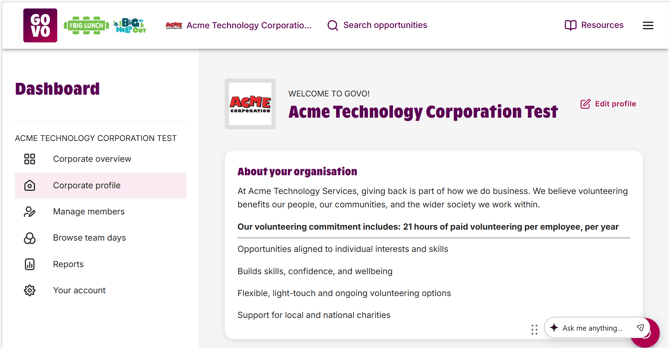
We recommend adding links to your volunteering policies here so the information is easily accessible for employees. This section can be updated at anytime by clicking on the Edit profile button next to your organisation name.
You can also upload your logo here after you have clicked on Edit profile by clicking on the icon next to your company name. Your logo should be a square image (equal width and height) saved as a JPG, PNG, or WebP format, under 1 MB.
If you don't upload a logo, the two character black and grey image will remain there.
Make sure to come back to this page and click 'edit profile' if any information changes.
3. Assign roles in the platform
Go to your Manage members tab and click the three dots under the action column on the team member you would like to assign as an admin and click Change role. Available roles can be selected before you confirm Yes, change role.
You can also view users last login date here and also sort and filter the table using the sort by button in the right hand corner.
4. Employees that leave your organisation
Because you are set up using SSO, once an employee leaves your organisation this will automatically block them from having access to the GoVo platform using their work email address.
If they want to continue to volunteer, they can sign up to GoVo using a personal email address and volunteer independently from your organisation.
Read our next article How to set up Single Sign-On (SSO) for your organisation