
Step-by-step guide
-
Log in to your charity account
-
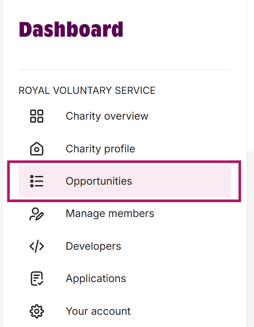
From the dashboard, select Opportunities
-
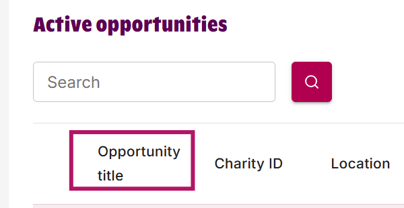
Click on the opportunity title you want to update
-
Select View full details at the bottom of the opportunity

-
You will now see the full opportunity page.
If your listing is using a default image, you’ll see a label saying “Default image used” in the top left corner of the image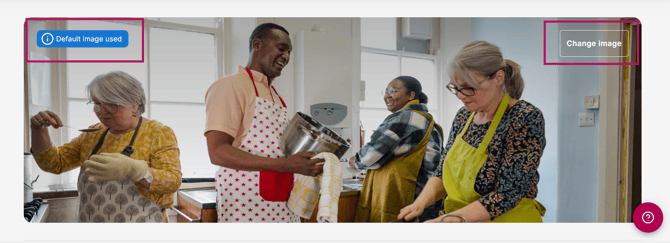
In the top right corner, click Change image
Uploading a new image
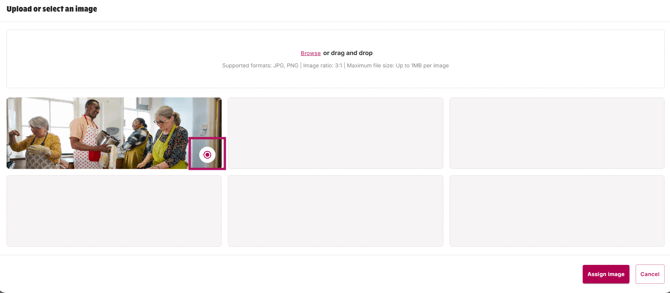
From here, you can upload your own images by clicking browse or dragging and dropping the image into the uploader.
-
Supported file types: JPG or PNG
-
Image ratio accepted: 3:1 (click here for help with this)
-
Maximum file size: 1MB per image (check the file size to ensure it is not over 1MB)
You can upload multiple images to your image bank which can then be used on different opportunities.
Assigning an image
-
Once your images are uploaded, click on the image you want to use
-
Click Assign image
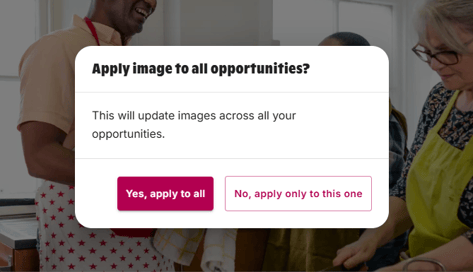
After clicking Assign image, a pop-up will appear asking if you want to apply this image across all opportunities.
-
Select Yes, apply to all to use this image for all your opportunities. Please note this will add the image to any existing opportunities, new opportunities will need to have an image assigned after they are live.
-
Or choose No, apply only to this one to update just the selected opportunity
Once you’ve made your selection, a preview screen will appear showing the new image.
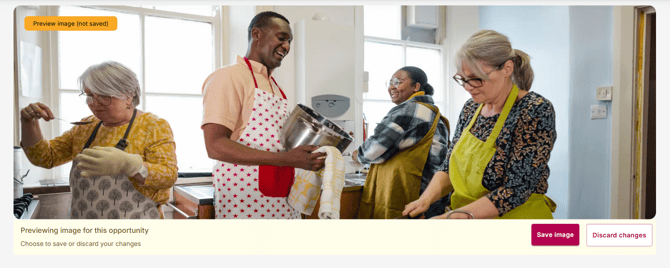
From here, you can:
-
Click Save image to confirm the change
-
Or select Discard changes if you’re not happy with the image
If you discard the changes, you can choose a different image. If you save, a confirmation message will appear to let you know the image has been successfully updated on your opportunity (or opportunities).
Image upload tips:
- Using an AI image editing tool is probably the easiest way to get the 3:1 ratio, you can ask it to crop your image to the correct size. For example, you could type: “Crop this image to a 3:1 aspect ratio.” You can also use a free online tool such as Pixlean where you can upoad an image and easily set the size, available via the following link: Image Resizer – Download - Pixlean
- Check your image after uploading on both the opportunity banner and how it appears on the opportunity card in the search results, you may want to try a different image.
- A strong image can make a big difference in attracting volunteers so it’s worth taking a moment to get it right ensuring it's not blurry when uploaded.
- If you're using an API to link to GoVo here's a link to our GoVo API guidance.